
Battery at a glance everywhere
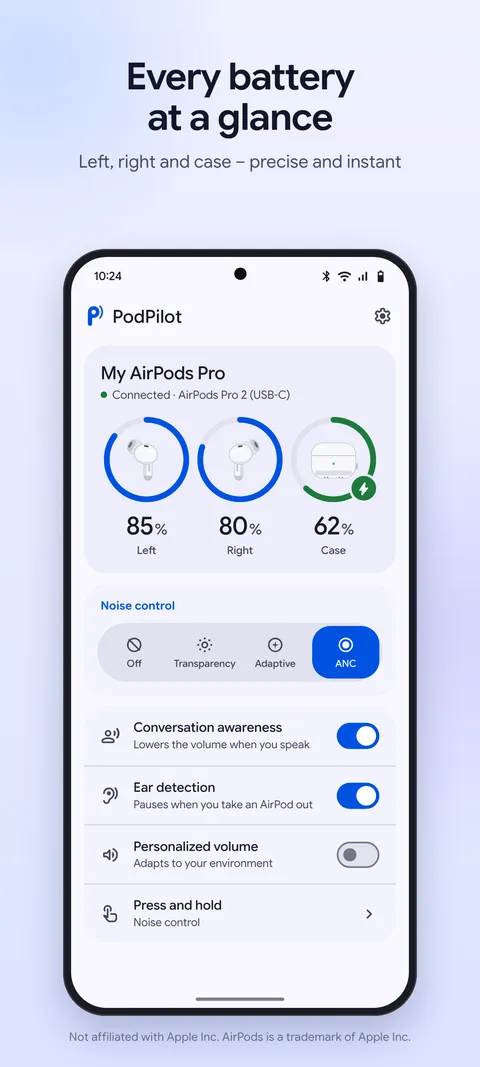
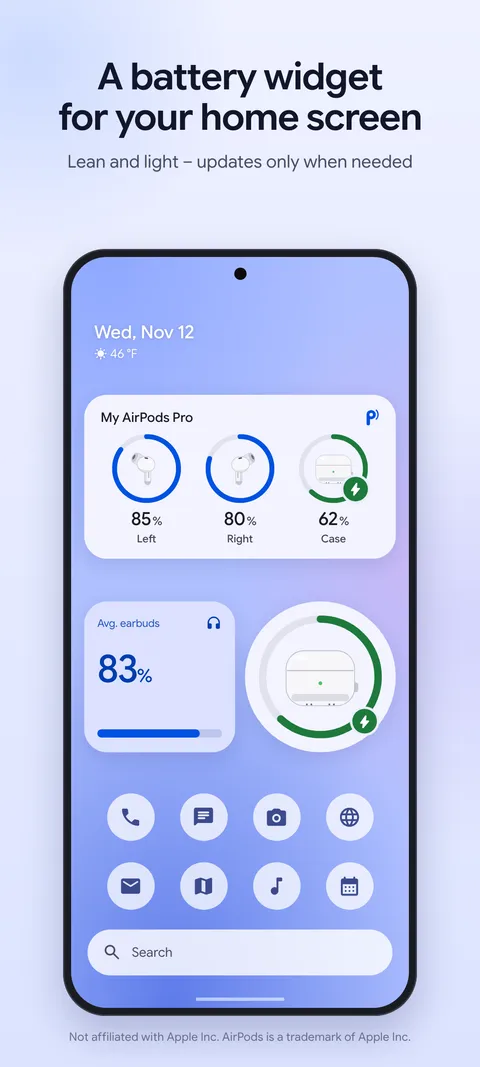
Left, right and case separately, with charging indicator. In the tile, the widget, the pop-up and the app.
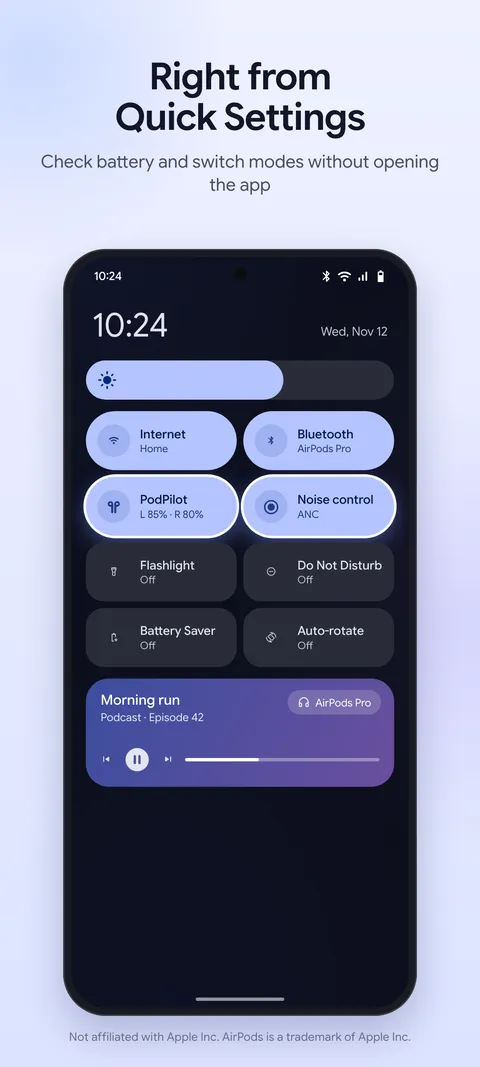
PodPilot shows the battery of your left and right earbud and the case, pops up a beautiful sheet when you open the lid, and switches noise cancellation, transparency and adaptive mode right from Quick Settings.
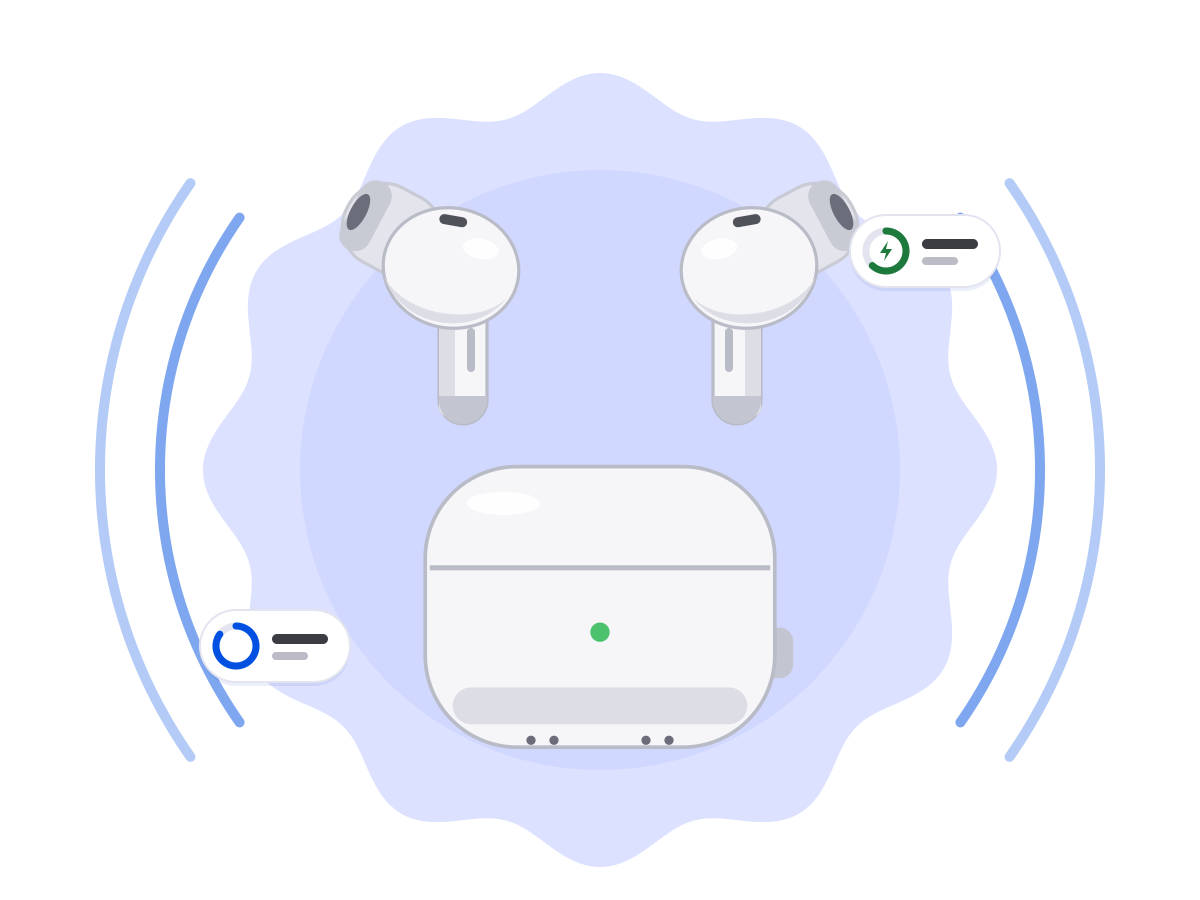
Everything you know from the iPhone – in your Pixel's look, with Material You and your system colors.
Left, right and case separately, with charging indicator. In the tile, the widget, the pop-up and the app.
One tile shows the battery, a second one cycles the noise mode. Long-press opens the control panel.
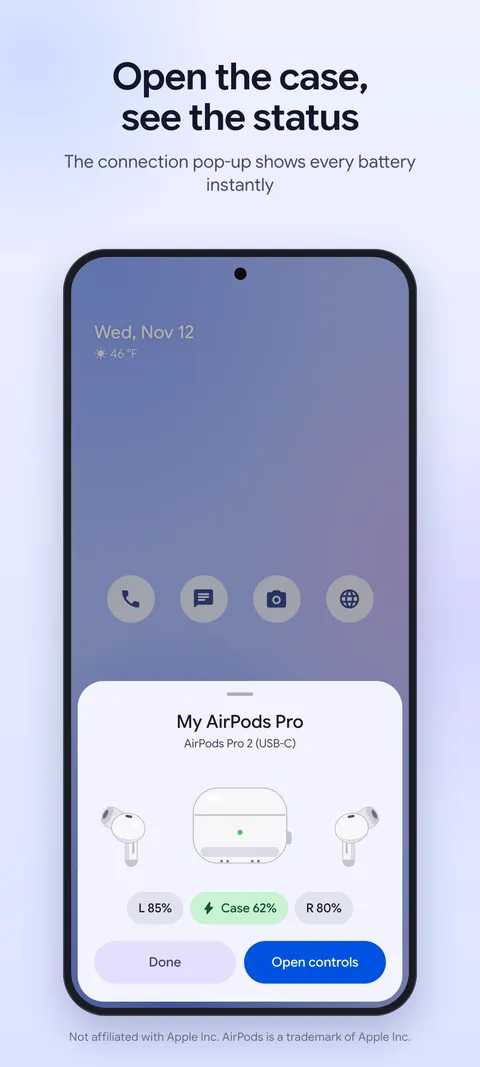
Open the case near your phone and a bottom sheet with all battery levels slides up – just like on the iPhone.
Small and frugal: it only updates when something actually changes – no background ticking.
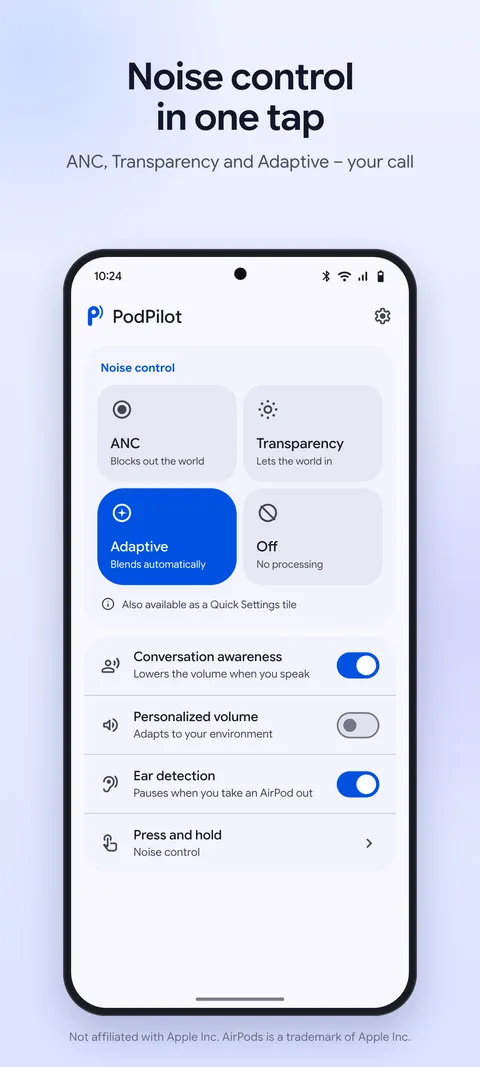
Off, noise cancellation, transparency and adaptive – whatever your model supports.
Conversation awareness, personalized volume, ear detection with automatic pause, custom press-and-hold action and renaming your AirPods.
PodPilot detects every AirPods generation automatically. Which features you get depends on the model and your Android version.
| Any Android 10+ | Android 16 QPR3+ | ||||||||
|---|---|---|---|---|---|---|---|---|---|
| Model | Battery L/R/case | Connection pop-up | Tile & widget | Noise modes | Conversation awareness | Personalized volume | Ear detection | Customize controls | Rename |
| AirPods (1st gen) | yes | yes | yes | no | no | no | yes | yes | yes |
| AirPods (2nd gen) | yes | yes | yes | no | no | no | yes | yes | yes |
| AirPods (3rd gen) | yes | yes | yes | no | no | no | yes | yes | yes |
| AirPods 4 | yes | yes | yes | no | no | no | yes | yes | yes |
| AirPods 4 with ANC | yes | yes | yes | ANC · TR · AD | yes | yes | yes | yes | yes |
| AirPods Pro (1st gen) | yes | yes | yes | ANC · TR | no | no | yes | yes | yes |
| AirPods Pro 2 (Lightning / USB‑C) | yes | yes | yes | ANC · TR · AD | yes | yes | yes | yes | yes |
| AirPods Pro 3 | yes | yes | yes | ANC · TR · AD | yes | yes | yes | yes | yes |
| AirPods Max (Lightning / USB‑C) | yes | yes | yes | ANC · TR | no | no | yes | yes | yes |
Some features also depend on your AirPods' firmware. PodPilot asks your AirPods what they can do when they connect and hides the rest.
AirPods talk to a phone in two ways:
1. They broadcast their status over Bluetooth Low Energy: model, battery levels and whether the case is open. Every Android phone from version 10 can read that – which is why battery, pop-up, tile and widget work everywhere.
2. Settings need a dedicated data channel to the AirPods. For a long time, regular Android apps were not allowed to open that channel – only with root. Starting with Android 16 QPR3, Android allows it without root. Google Pixel phones get this update first; other manufacturers follow with their own updates.
You'll find your Android version under Settings › About phone › Android version.
First pair your AirPods once as usual in your phone's Bluetooth settings (open the case, hold the button on the back until the light flashes white). Then:
All details: Privacy policy
No. PodPilot works entirely without root. On Android 10 to 16 QPR2 you get battery, pop-up, tile and widget; from Android 16 QPR3 you also get settings such as noise modes.
Yes – battery display, pop-up, tile and widget run on every Android phone from Android 10. The extended settings depend on whether your manufacturer ships Android 16 QPR3 (or later) and doesn't restrict the Bluetooth channel. PodPilot checks this automatically and unlocks what works.
Tip for Samsung, Xiaomi and others: exclude PodPilot from battery optimization (Settings › Apps › PodPilot › Battery › “Unrestricted”), otherwise the system sometimes stops the app too early.
That's the name of Android's Bluetooth permission. PodPilot needs it to receive your AirPods' status signal (battery, case open) and to connect to them. The app does not ask for your location and has no internet access – so it can't know or share where you are.
Practically none you'd notice. PodPilot only looks for your AirPods while they are connected to your phone, filters specifically for AirPods and uses Bluetooth's low-power mode. Without connected AirPods nothing runs in the background. No continuous scanning, no keeping your phone awake.
That's the one-time link through Android's companion device feature. You pick your AirPods once, and from then on Android tells the app when they are connected. So battery levels and ear detection only run then – no permanently running background service and no persistent status-bar icon. Without the link, PodPilot only updates while the app is open.
That's the silent battery notification – a convenience, not a requirement. It disappears as soon as you disconnect your AirPods and can be switched off in PodPilot under Settings › Battery notification. Tile, widget and pop-up keep working.
Check that Bluetooth is on, your AirPods are paired and PodPilot has the “Nearby devices” permission. More steps are on the support page.
No. PodPilot is free, without in-app purchases and without ads.
No. PodPilot is an independent app by Geitau 21 GmbH & Co. KG and is not affiliated with Apple.